Photo Album Widget guide
How to Show an Existing Photo Album on Your iPhone Home Screen
To show an existing album with Photo Album Widget, add its widget to your iPhone Home Screen, then touch and hold it and choose Edit Widget → Album. Select the album you want to see. You can also choose its Display Order in that same configuration.
This guide is from the team behind Photo Album Widget, a paid app for iPhone and iPad. The iPhone app requires iOS 17 or later. Check your local App Store for the current price and requirements before downloading.
Choose the album you want to see
Start with an existing album in Photos: a trip, your dog, or a collection of favourite moments. The widget uses that album; you do not need to rebuild the collection inside Photo Album Widget.
If you only need a simple album display, Apple's built-in Photos widget also offers an album option. Apple introduced it in iOS 17. This guide covers Photo Album Widget and its configuration, including the photo-order choices below.
Open Photo Album Widget and allow photo access
Get Photo Album Widget from the App Store and open it. Follow the photo-access prompt.
To select existing user albums, the app needs Full Access to Photos. With limited access to selected pictures, iOS does not make those user albums available to the app. If your album is missing, check Photo Album Widget's Photos permission in Settings.
Only grant the access you are comfortable with. If you prefer to keep access limited, this album-based setup may not work for your album.
Add the widget to your Home Screen
Touch and hold an empty area of your Home Screen until the icons jiggle. Tap Edit, then Add Widget. On older iOS versions, look for the + button instead.
Search for Photo Album Widget, choose the widget size you want, and tap Add Widget. Tap Done to finish placing it.
Choose Photo Album Widget in the gallery for the steps below. Apple's widget appears under Photos and has its own configuration.
Select your album in Edit Widget
Touch and hold the Photo Album Widget on your Home Screen and choose Edit Widget. Open the Album field and select your existing album.
The album selection happens in the widget configuration. Opening the app alone does not replace this step. Tap outside the configuration to return to your Home Screen.
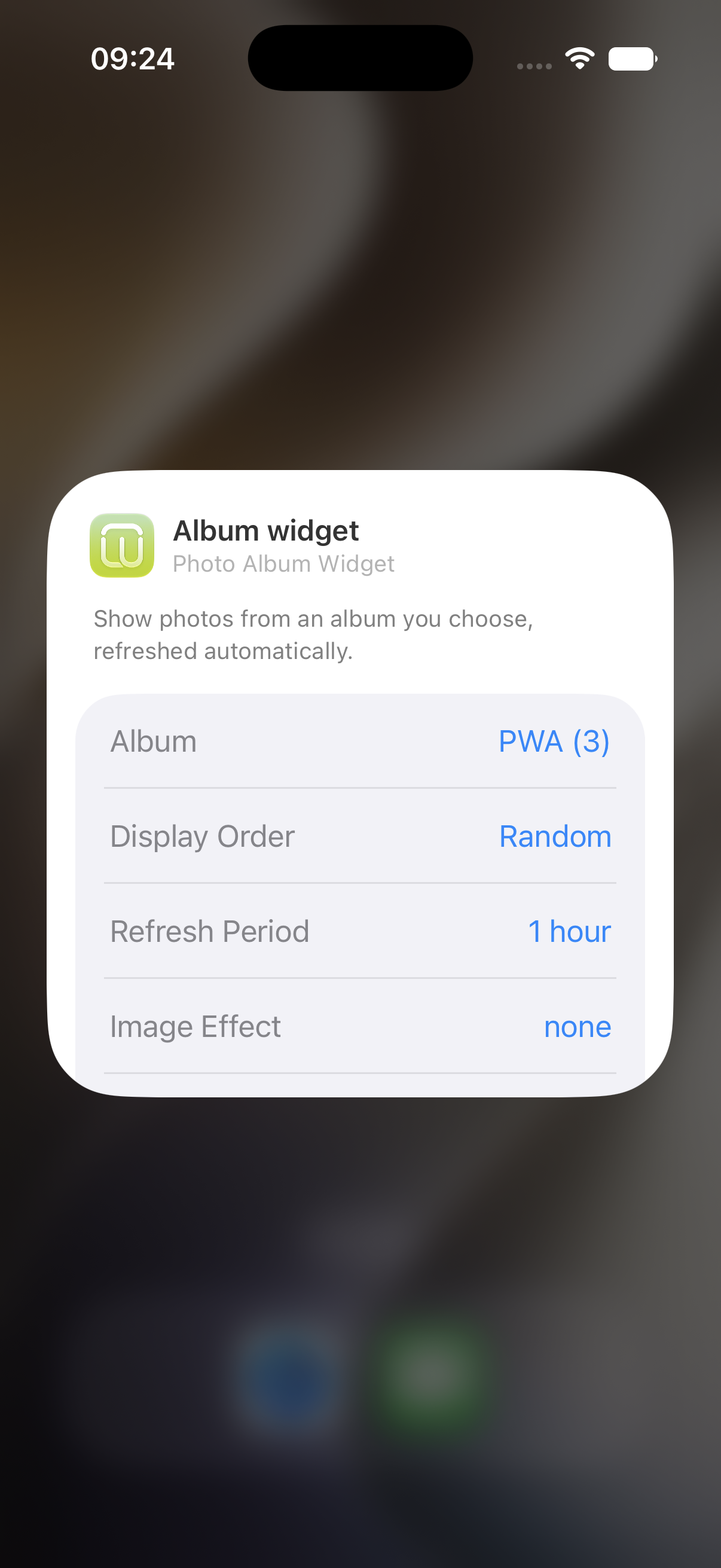
Example widget configuration. Appearance can vary by iOS version.
Choose the photo order
In the widget configuration, find Display Order. Select Random for a mix of photos, or choose Date Ascending or Date Descending for a sequential display.
You can change this option without creating a second album. Start with Random if you want to revisit different parts of the collection.
If the widget cannot show your album
Check that the album still exists and contains photos. Then confirm that the widget's Album field points to the album you intended to select.
If the widget shows a photo-access notice, check the app's Photos permission in Settings. After changing access, return to the app and check the widget again. iOS controls widget updates, so a change may not appear immediately.
Keep a favourite album in view
Place the widget where you will notice it during the day. A favourite travel photo or familiar face will be easier to find than an album tucked away in your library.
View Photo Album Widget on the App Store. Check the current local price and device requirements before downloading.